Structure Of Apex Program | How to Create Apex Program
How to Write Apex Code ?
There are several development environments for developing Apex code. The Force.com Developer Console and the Force.com IDE.
What is an IDE ?
IDE stands for Integrated Development Environment. IDE allow developers to write, test, and debug the code.
Force.com Developer Console.
The Developer Console is an integrated development environment with a collection of tools you can use to create, debug, and test applications in your Salesforce organization.
The Developer Console supports these tasks:
- Writing code—You can add code using the source code editor. Also, you can browse packages in your organization.
- Compiling code—When you save a trigger or class, the code is automatically compiled. Any compilation errors will be reported.
- Debugging—You can view debug logs and set checkpoints that aid in debugging.
- Testing—You can execute tests of specific test classes or all tests in your organization, and you can view test results. Also, you can inspect code coverage.
- Checking performance—You can inspect debug logs to locate performance bottlenecks.
- SOQL queries—You can query data in your organization and view the results using the Query Editor.
- Color coding and autocomplete—The source code editor uses a color scheme for easier readability of code elements and provides autocompletion for class and method names.
Force.com IDE
The Force.com IDE is a plug-in for the Eclipse IDE. The Force.com IDE provides a unified interface for building and deploying Force.com applications. Designed for developers and development teams, the IDE provides tools to accelerate Force.com application development, including source code editors, test execution tools, wizards and integrated help. This tool includes basic color-coding, outline view, integrated unit testing, and auto-compilation on save with error message display.
Code Editor in the Salesforce User Interface.
The Salesforce user interface. All classes and triggers are compiled when they are saved, and any syntax errors are flagged. You cannot save your code until it compiles without errors. The Salesforce user interface also numbers the lines in the code, and uses color coding to distinguish different elements, such as comments, keywords, literal strings, and so on. • For a trigger on an object, from the object’s management settings, go to Triggers, click New, and then enter your code in the Body text box. • For a class, from Setup, enter Apex Classes in the Quick Find box, then select Apex Classes. Click New, and then enter your code in the Body text box.
Alternatively, you can use any text editor, such as Notepad, VS Code to write Apex code. Then either copy and paste the code into your application, or use one of the API calls to deploy it.
Creating Our First Apex Class in the Developer Console.
To open Developer Console in Salesforce Click on the gear icon and select Developer Console.
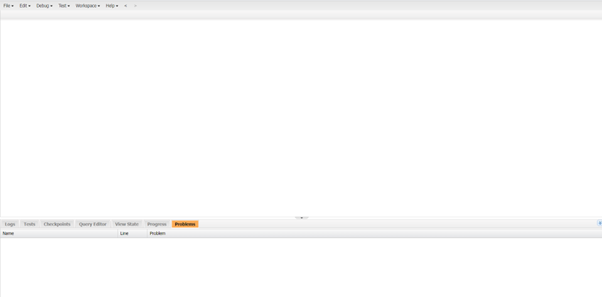
Now To Create our first Apex class, Click On the File->New->Apex Class.
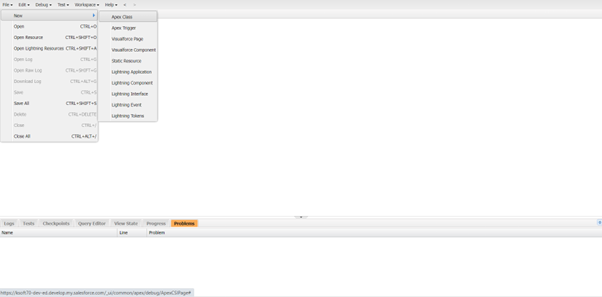
Give the Class name as MyFirstApexClass and click on OK.
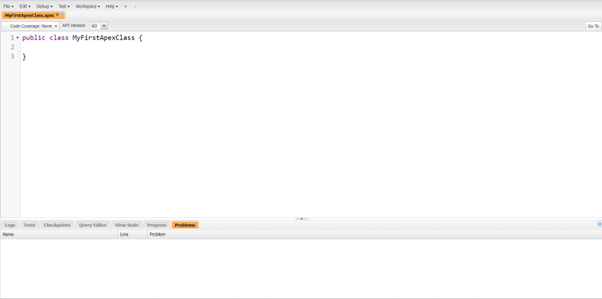
Your First Apex Class is Created Successfully.
Structure Of the Apex Program.
Apex code typically contains many things that we might be familiar with from other programming languages.
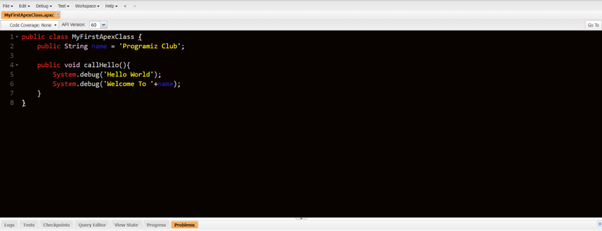
					public class MyFirstApexClass {
	public String name = 'Programiz Club';

    public void callHello(){
        System.debug('Hello World');
        System.debug('Welcome To '+name);
    }
}
Related Topics
- List Item #1
- List Item #2
- List Item #3